A tiny ornament that hangs on your desktop.
HangLine hangs a beautiful little thing from a thread at the top of your screen. It swings when you brush it, dings when you click it, keeps your tasks as gold rings on the line, and stays perfectly out of your way the rest of the time.
What is HangLine?
A small, free desktop companion. It draws one ornament on a thread at the top of your screen, above or behind your windows, and leaves the rest of the screen completely alone. No browser tab, no window to manage: it lives in your menu bar / system tray.
Real physics
A simulated thread with weight, elasticity and air. It swings, stretches and settles like the real thing, and reacts when you wake your computer or plug in power.
Tasks on a string
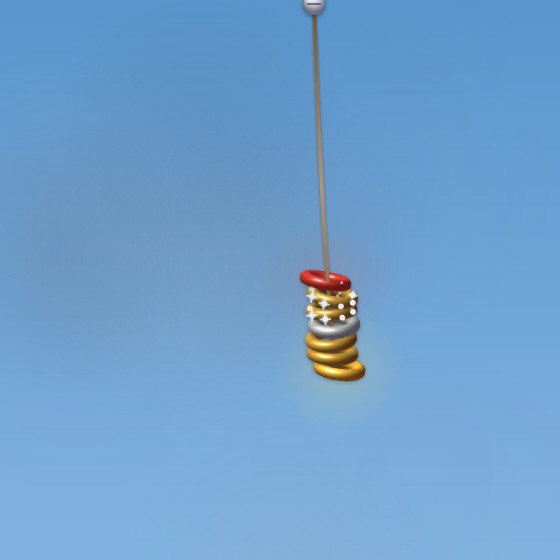
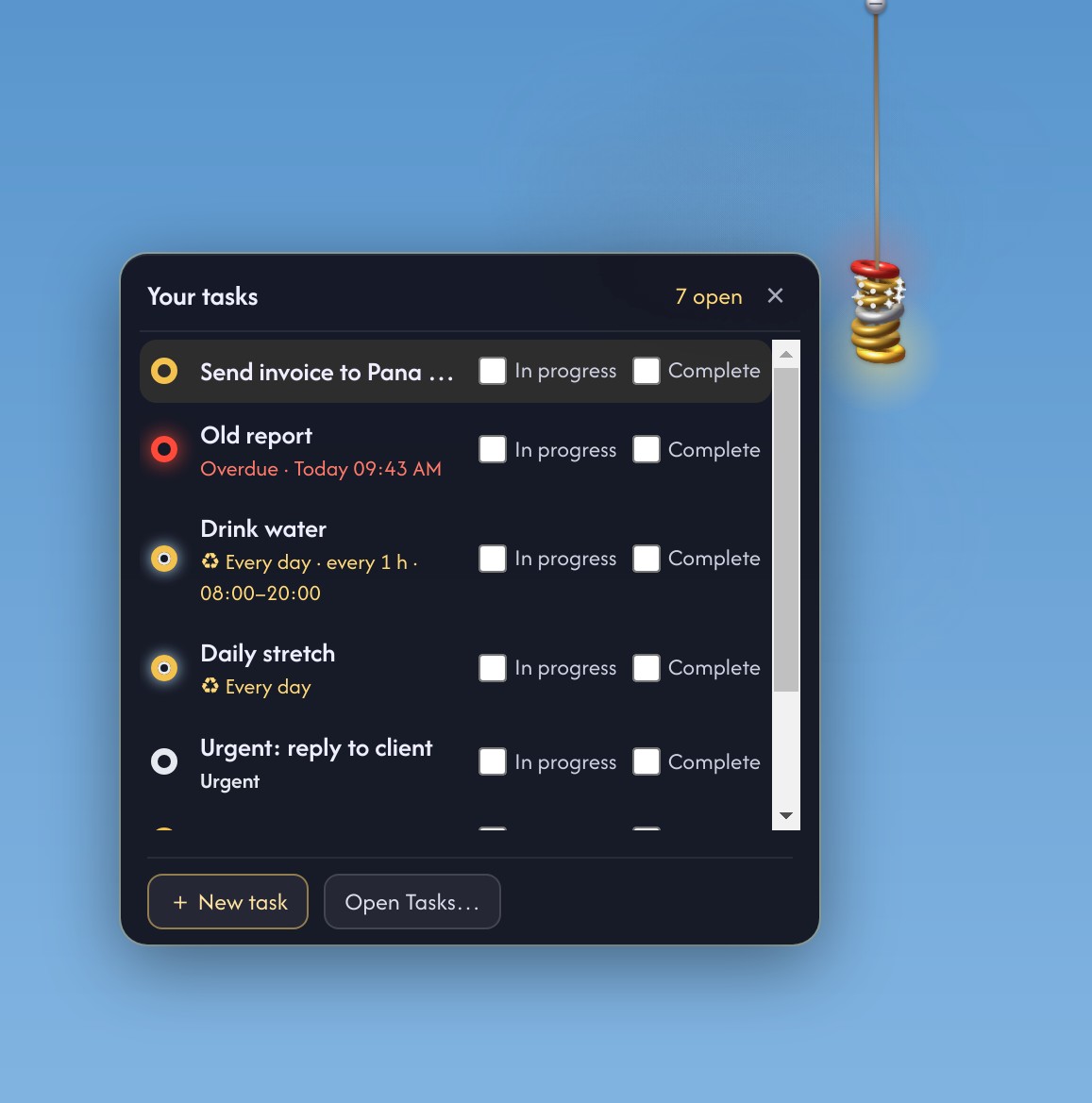
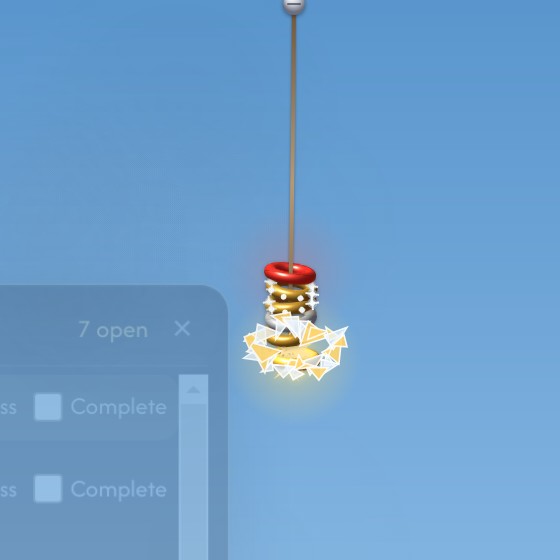
Every to-do is a gold ring on the thread: platinum when urgent, diamonds when it repeats, red when overdue. Complete it and the ring shatters like glass.

Never in the way
Your mouse goes straight through to the windows behind. Play mode lets you grab and fling it; mirror mode makes it display-only. It never steals focus.
Features
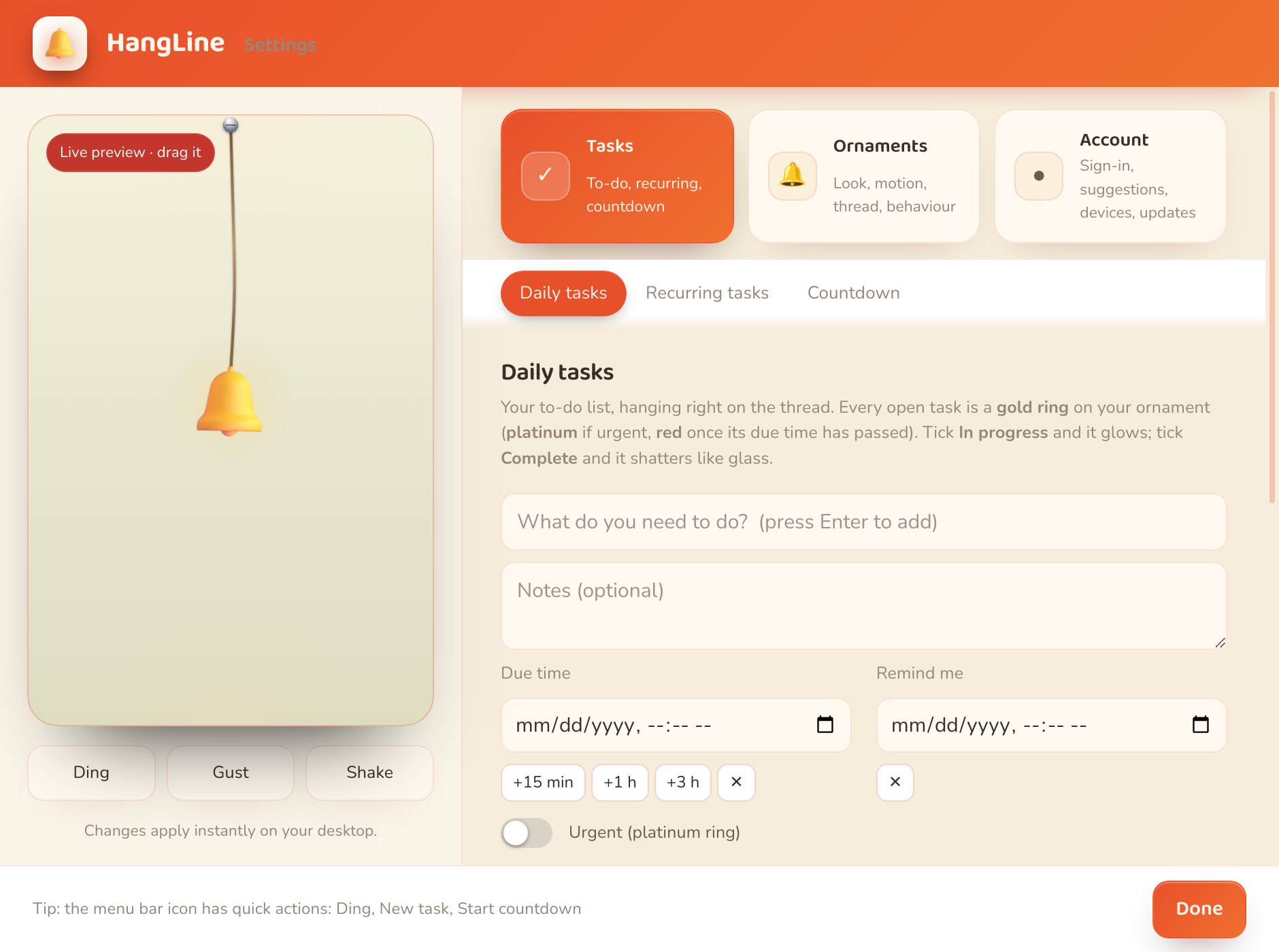
Everything lives in one simple Settings window with three areas: Tasks, Ornaments and Account. Changes apply instantly on your desktop, with a live preview you can drag.
Pick what hangs
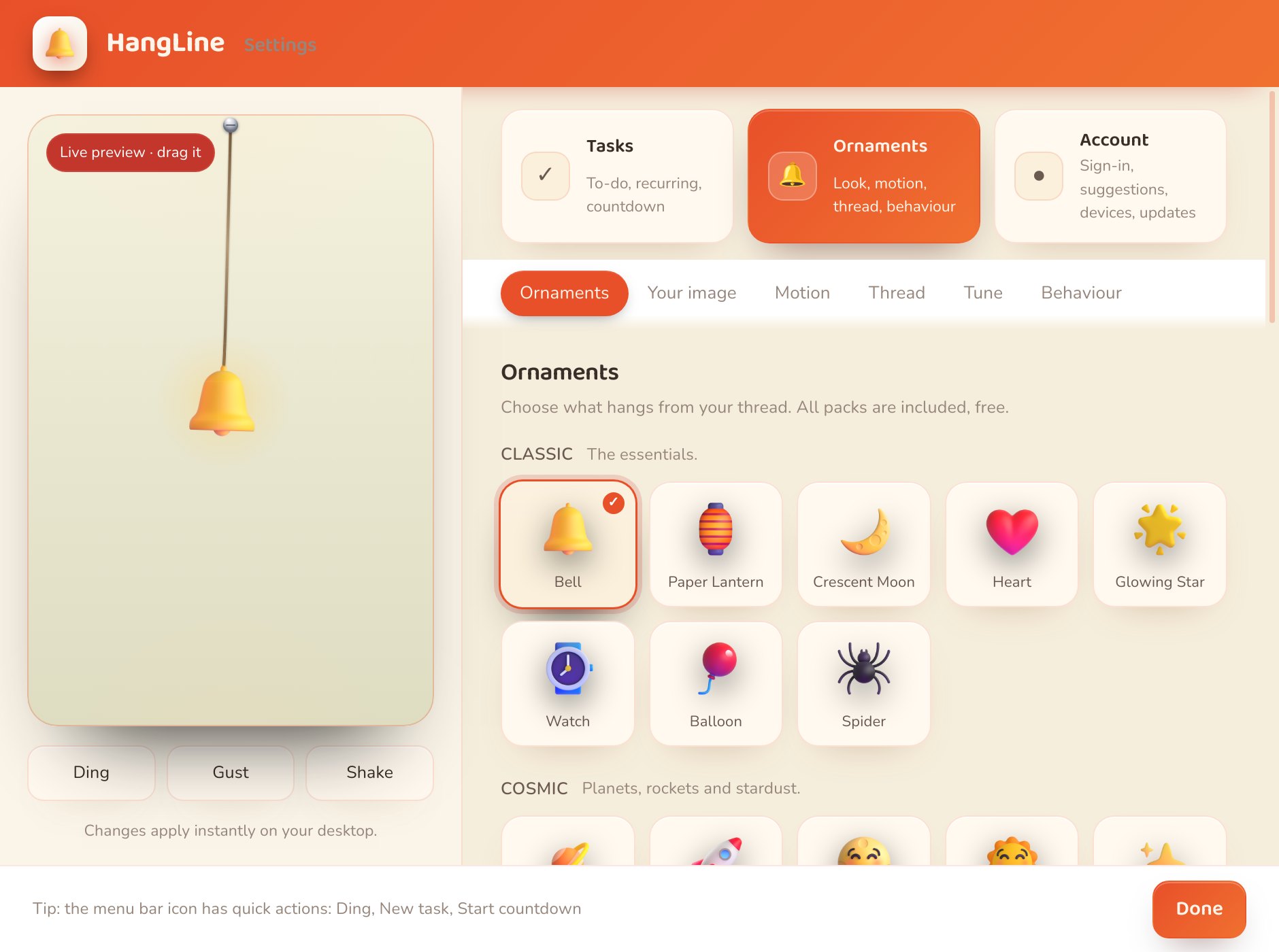
Bells, lanterns, moons, hearts, planets, rockets, an animated Pana Pana rabbit and more. Every pack is included for free. Click a card and it is hanging on your desktop a moment later.
Hang your own picture
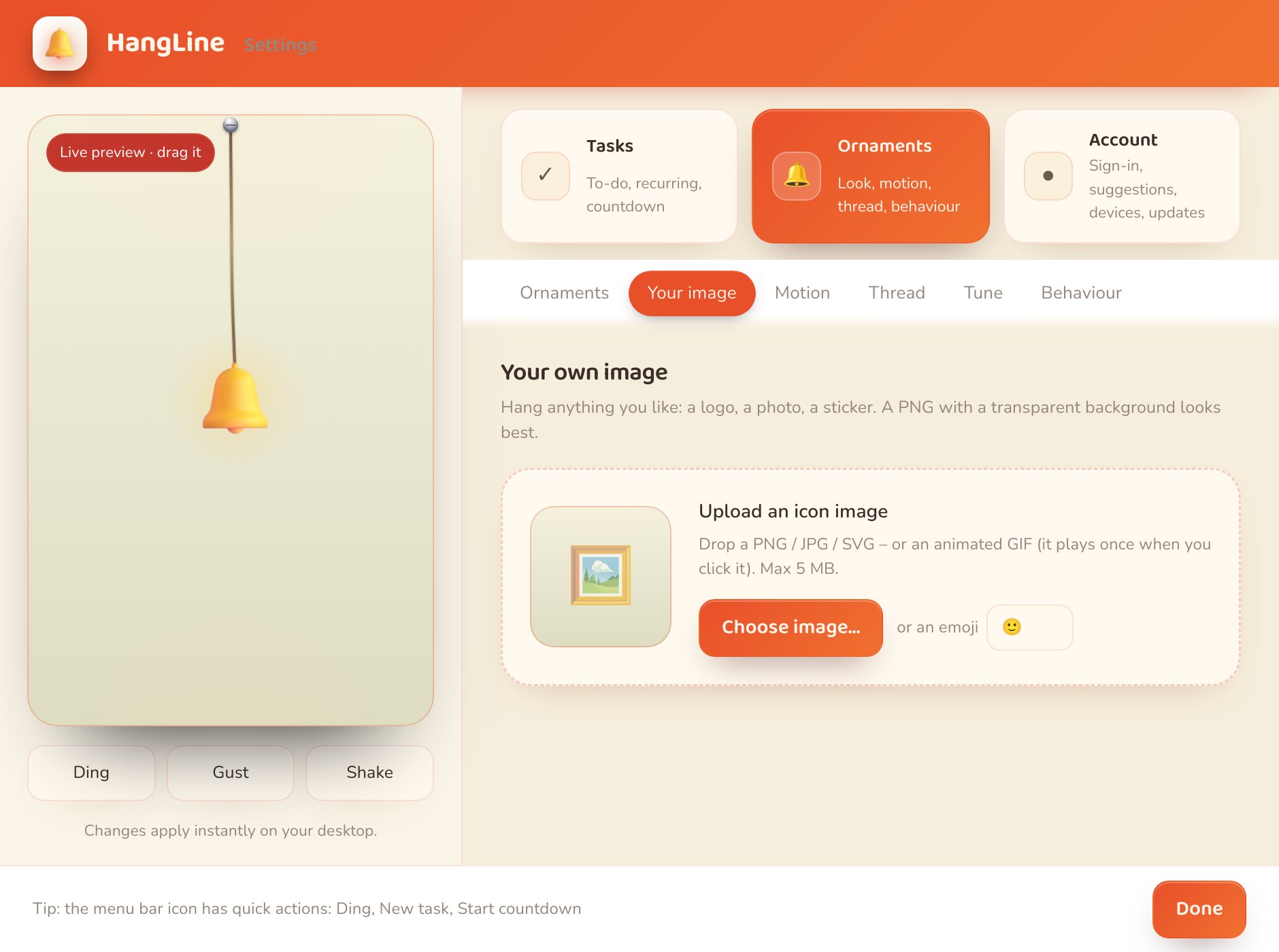
Drop a PNG, JPG, SVG or even an animated GIF (it plays once when you click it). A logo, a photo, a sticker, or just an emoji.
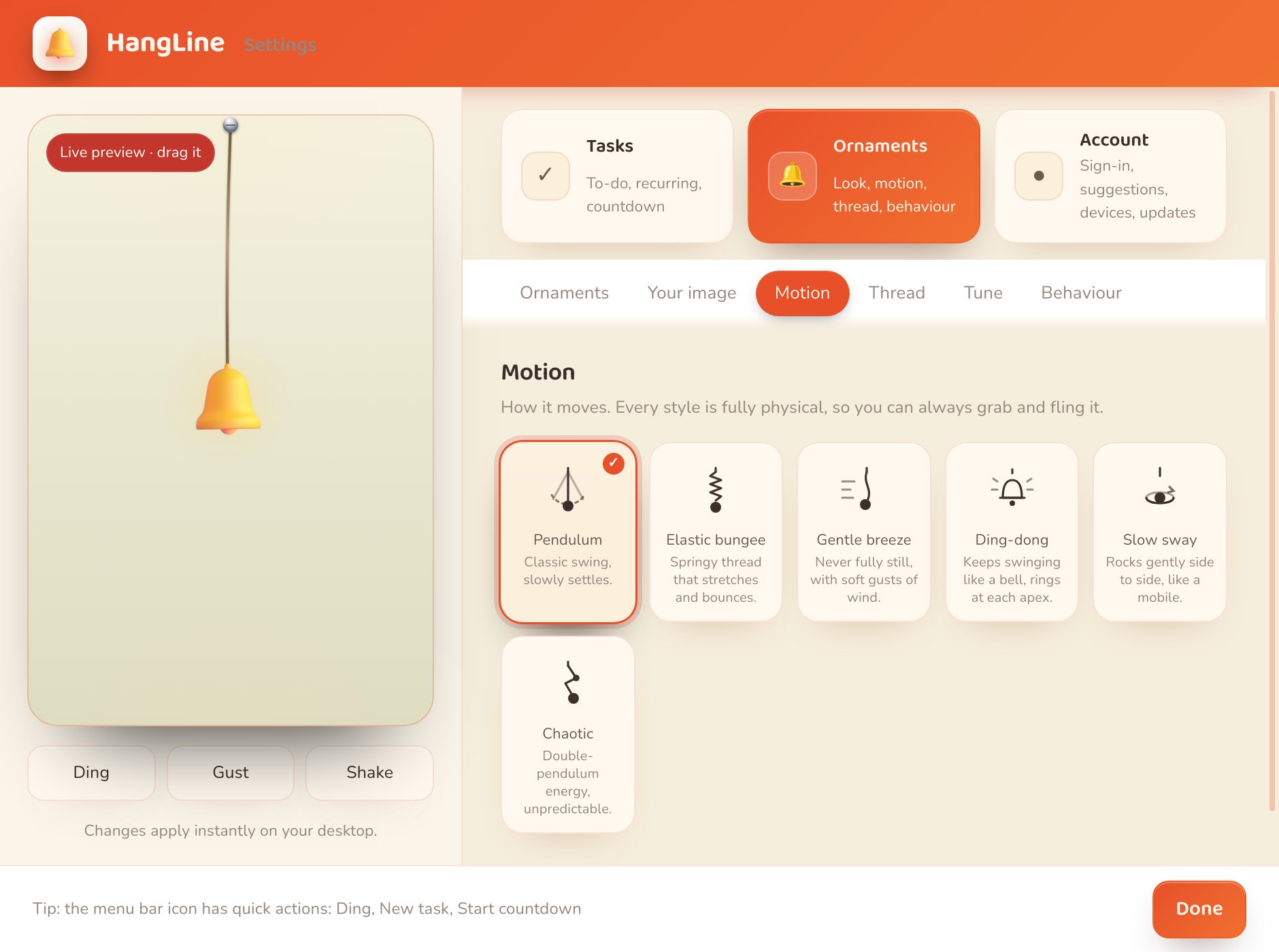
How it moves
Pendulum, elastic, gentle breeze, ding-dong bell, spin or chaos. Every style is fully physical, so you can always grab it and fling it.
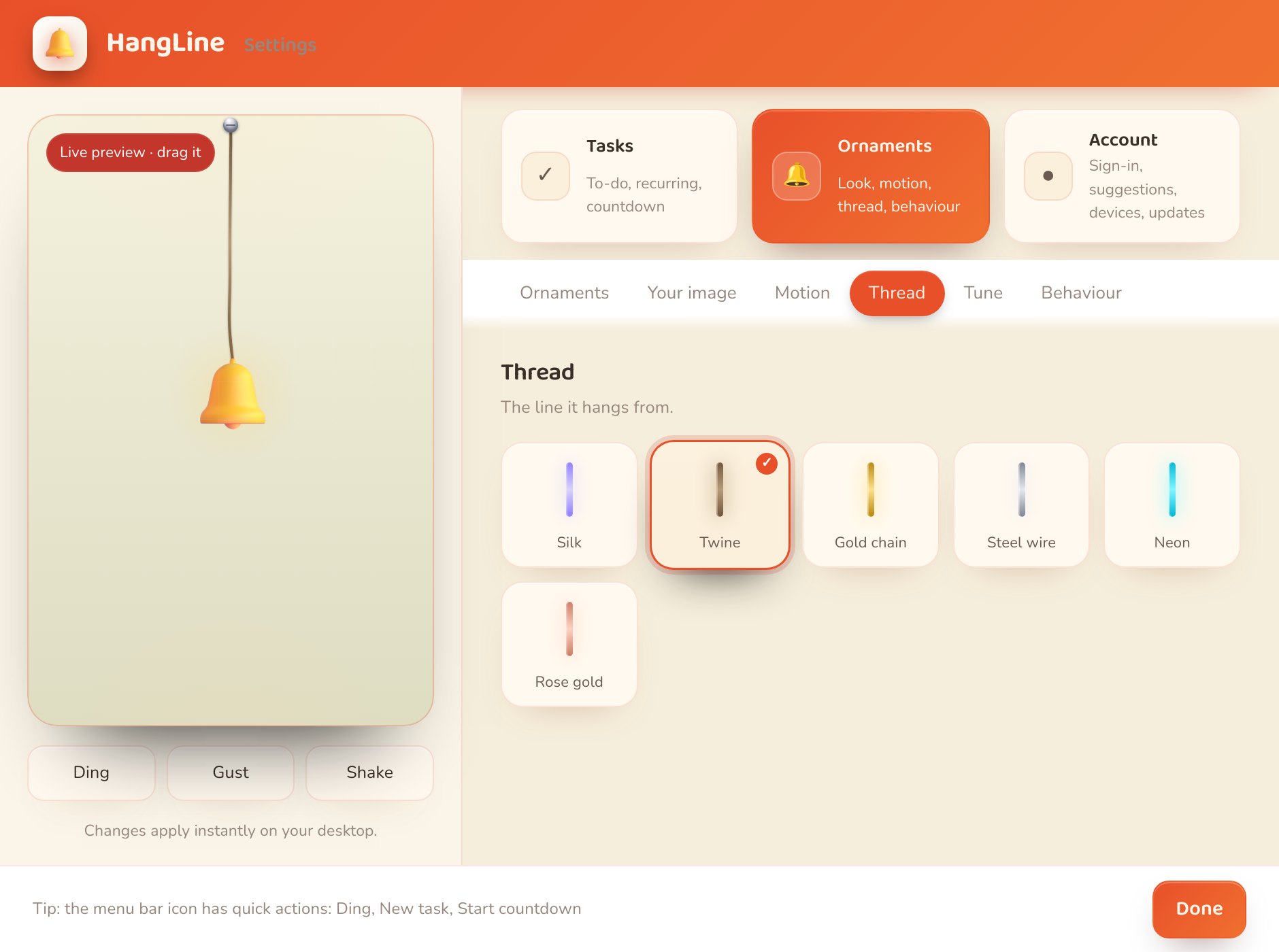
The line it hangs from
Silk, fairy lights, gold chain, steel wire, neon and more. Pick the one that suits your wallpaper.
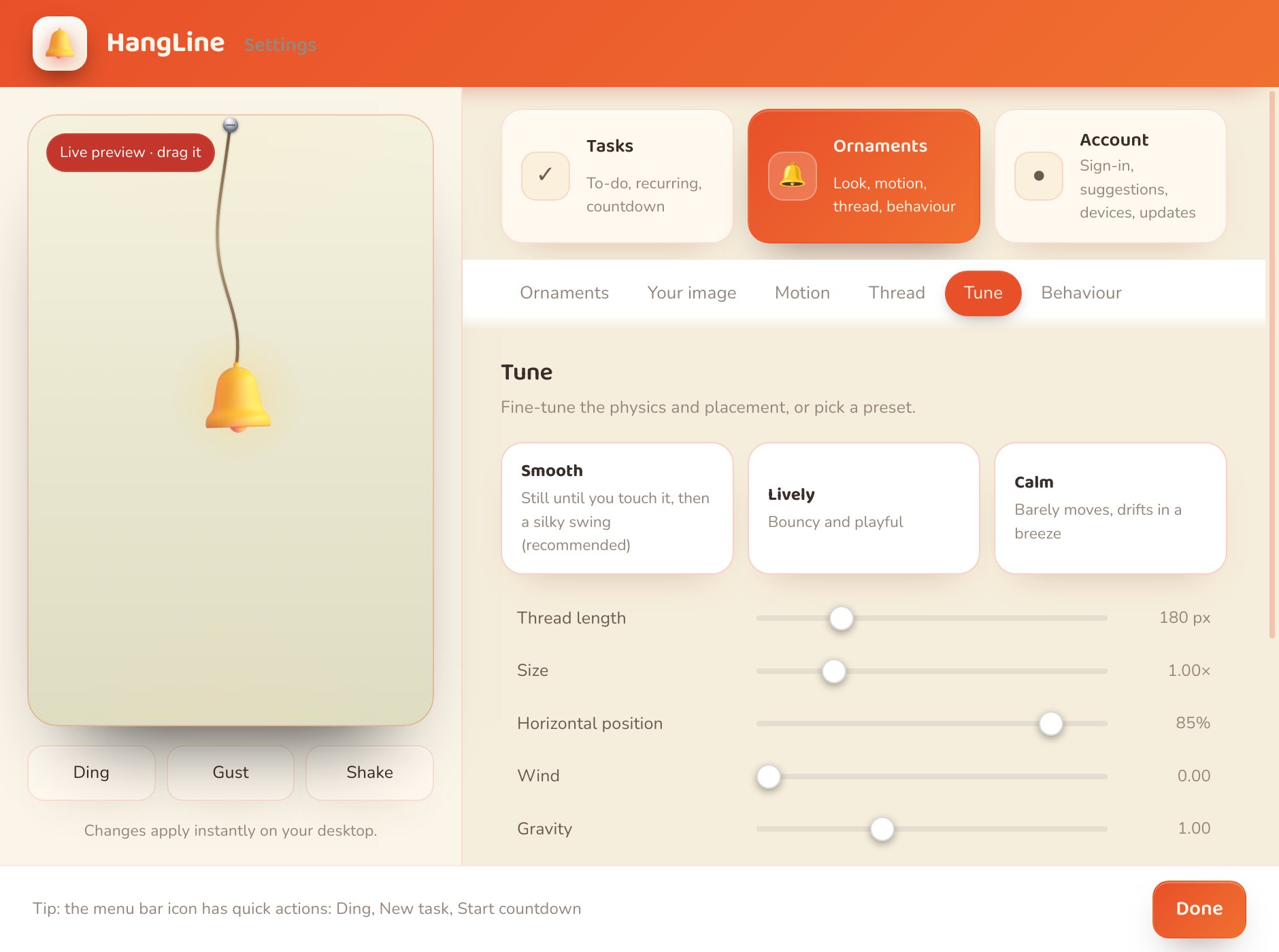
Make it yours
Thread length, size, position, wind, gravity, air resistance, elasticity, volume and which display it lives on. Or pick a preset: Smooth, Lively, Calm.
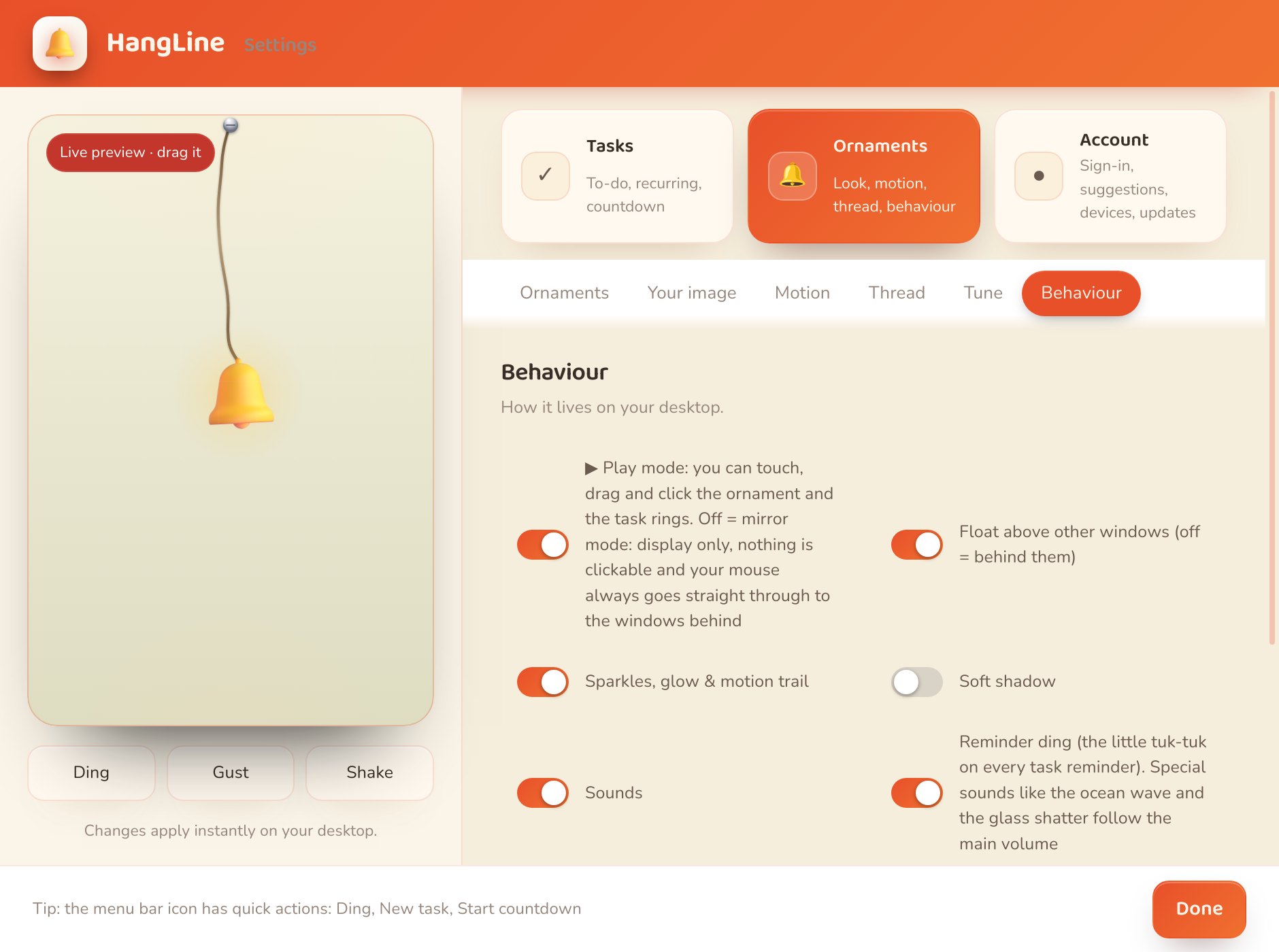
How it lives on your desktop
Play mode or mirror mode, float above windows or sit behind them, sparkles and shadow, sounds, an hourly ding, reactions to wake and power, and launch at startup.
Tasks, hanging on the thread
A personal to-do list that you can actually see. Each open task becomes a real 3-D gold ring stacked on the head of your ornament, with the thread running through the holes.
Add a task, a ring drops in
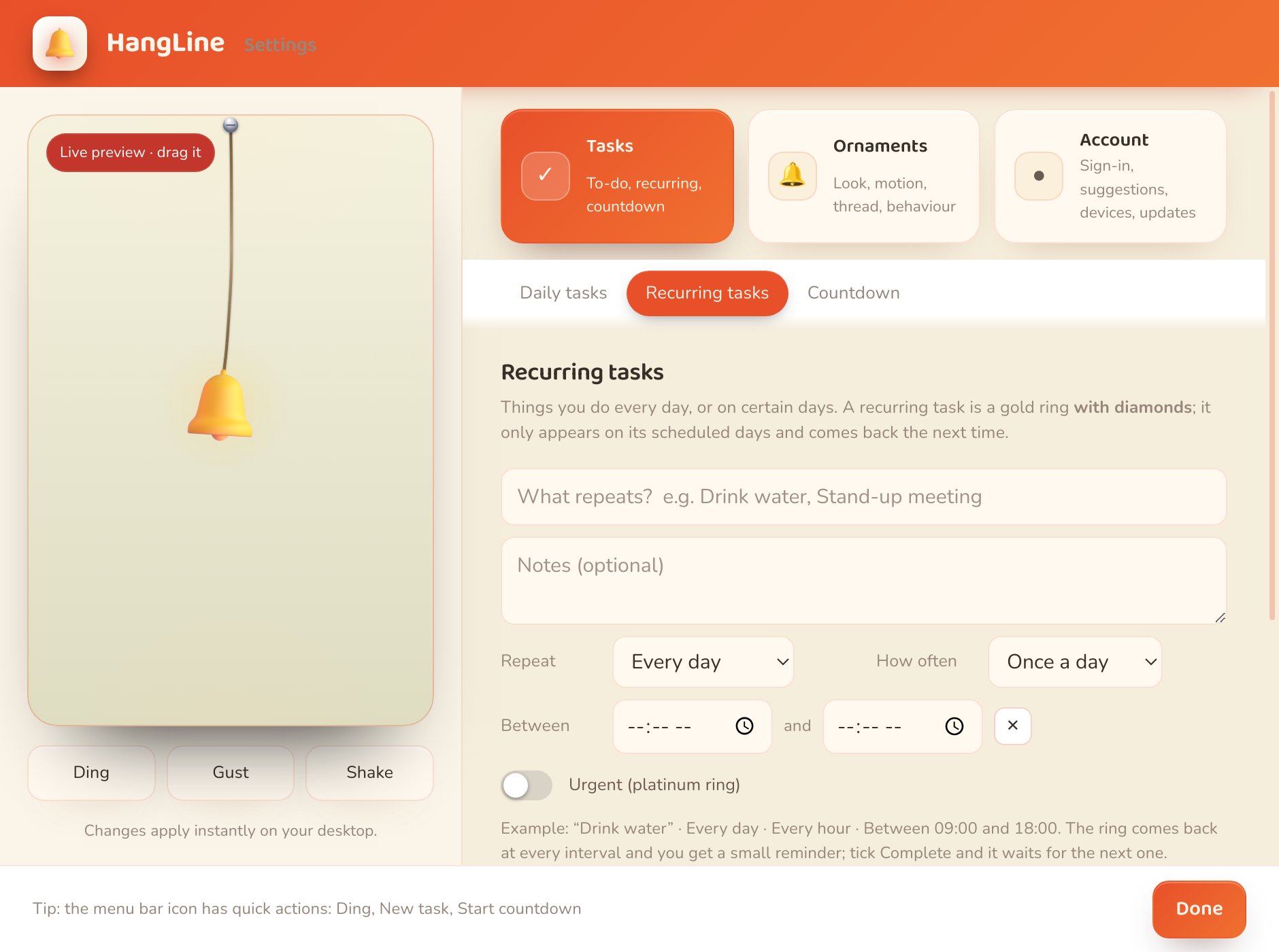
Type what you need to do, optionally add notes, a due time, a reminder, or mark it urgent. Tick In progress and the ring glows; tick Complete and it shatters with an icy sound.
Every day, or certain days
A recurring task is a gold ring with diamonds. It only appears on its scheduled days and comes back the next time, so your daily habits are always on the line.
Give yourself 25 minutes
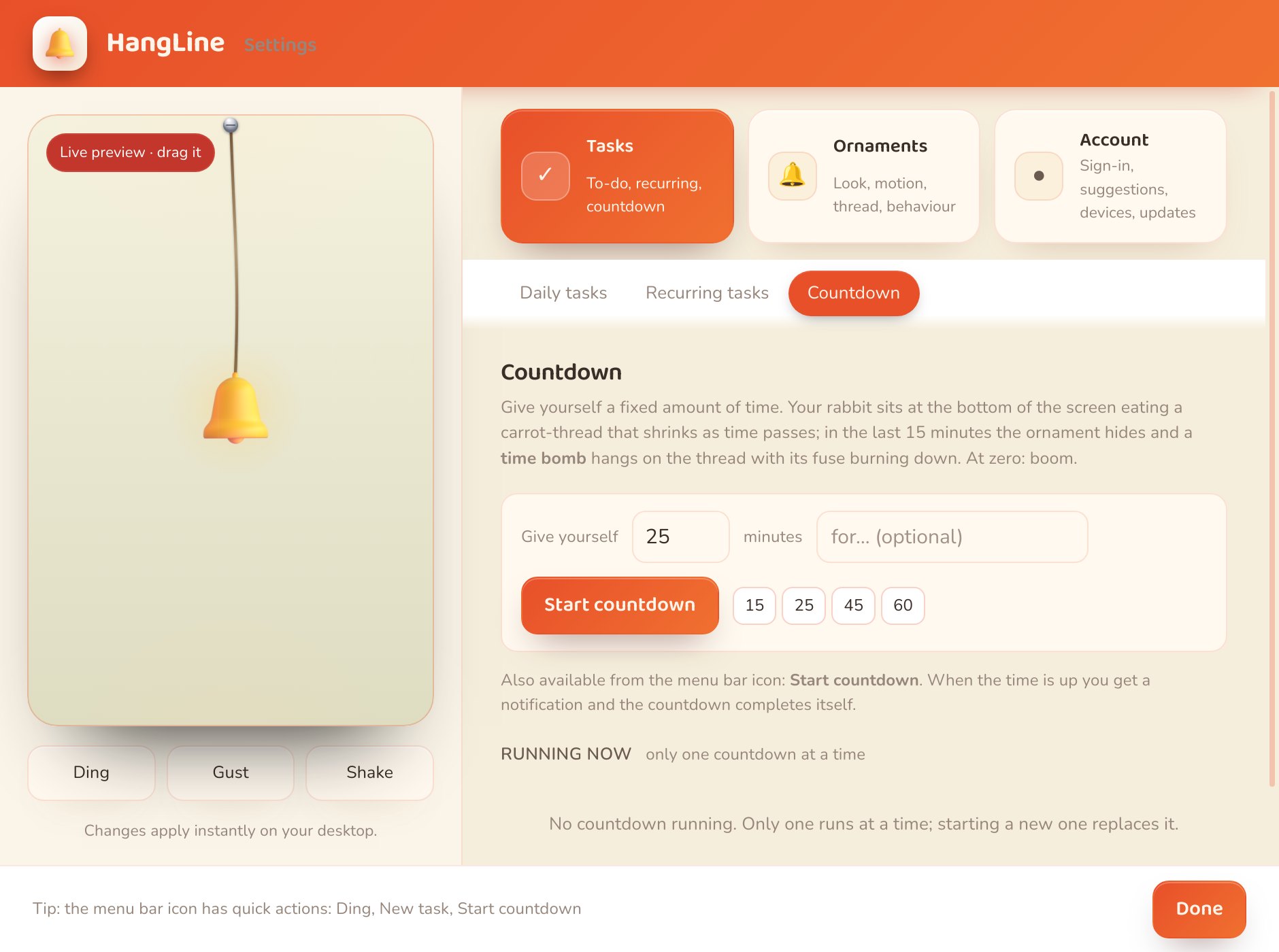
Start a countdown from Settings or the menu bar. While there is time, your rabbit sits at the bottom of the screen eating a carrot-thread that shrinks as time passes. In the last 15 minutes the ornament hides and a time bomb hangs on the thread, fuse burning down. At zero: boom.
Download
Latest version …. After installing, sign in with your free account.
macOS: the first time, right-click the app → Open. Windows: click “More info → Run anyway” if SmartScreen appears (until the app is code-signed).
Questions people ask
Is HangLine free?
Yes, completely. Every ornament, motion, thread and the task manager are included. You only need a free account so the app can remember you on up to 2 computers.
Can I hide it?
Yes. Click the HangLine icon in your menu bar (Mac) or system tray (Windows / Linux) and choose Hide, or quit it completely. You can also turn off “Float above other windows” so it sits behind your windows, or switch off Play mode to make it display-only.
Can I keep using my other apps without it getting in the way?
That is the whole idea. Your mouse clicks go straight through to whatever is behind it; only the ornament itself (and the task rings, when Play mode is on) catches a click. It never takes keyboard focus and never pops up a window on its own.
Is this software safe?
HangLine is a small desktop app that draws one picture on your screen. It does not read your files, your keyboard or your other apps. It talks to the internet only to sign you in and to check for updates. Your tasks are stored on your own computer, not on our servers.
Why does my Mac or Windows warn me when I install it?
Because the app is not yet code-signed with an Apple / Microsoft certificate. On a Mac, right-click the app the first time and choose Open; on Windows click “More info → Run anyway”. The download comes straight from our GitHub releases page, so you can always check the file there.
Which computers does it work on?
macOS (Apple Silicon and Intel), Windows 10 / 11, and Linux (AppImage and .deb). One account works on up to 2 devices.
Can I use my own picture or logo?
Yes. Open Settings → Ornaments → Your image and drop in a PNG, JPG, SVG or animated GIF. A PNG with a transparent background looks best.
Does it slow down my computer?
No. It is a single lightweight window drawing one small animation, and it goes to sleep when nothing is moving.
How do I uninstall it?
Quit HangLine from the menu bar / tray icon, then delete the app like any other (drag it to the Trash on a Mac, or use “Add or remove programs” on Windows).
Have an idea, or found a bug?
Tell us on the public board. Everyone can see and vote on suggestions, and we answer there.